![Untitled design (11).png]](https://customerportal.closereach.ca/hs-fs/hubfs/Untitled%20design%20(11).png?height=40&name=Untitled%20design%20(11).png)
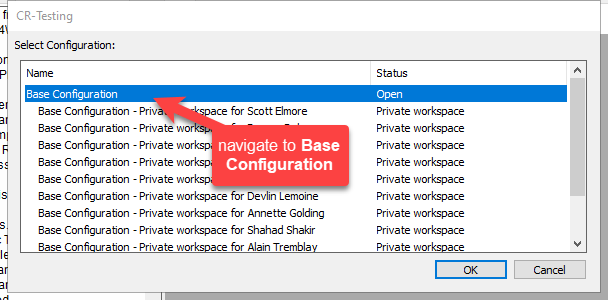
- Open QLM in Base (not Private Workspace)
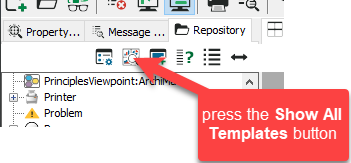
- In the Repository tab, press the Show All Templates button
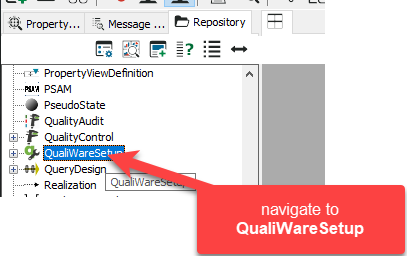
- Inside the Repository tab, navigate to QualiWareSetup
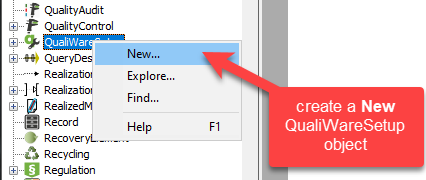
- Right-click QualiWareSetup > New…
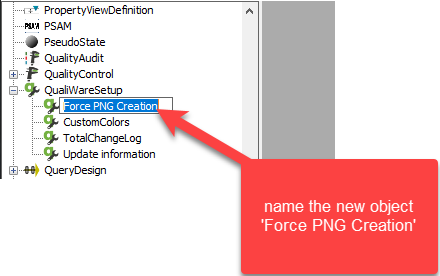
- Name the new object ‘Force PNG Creation’
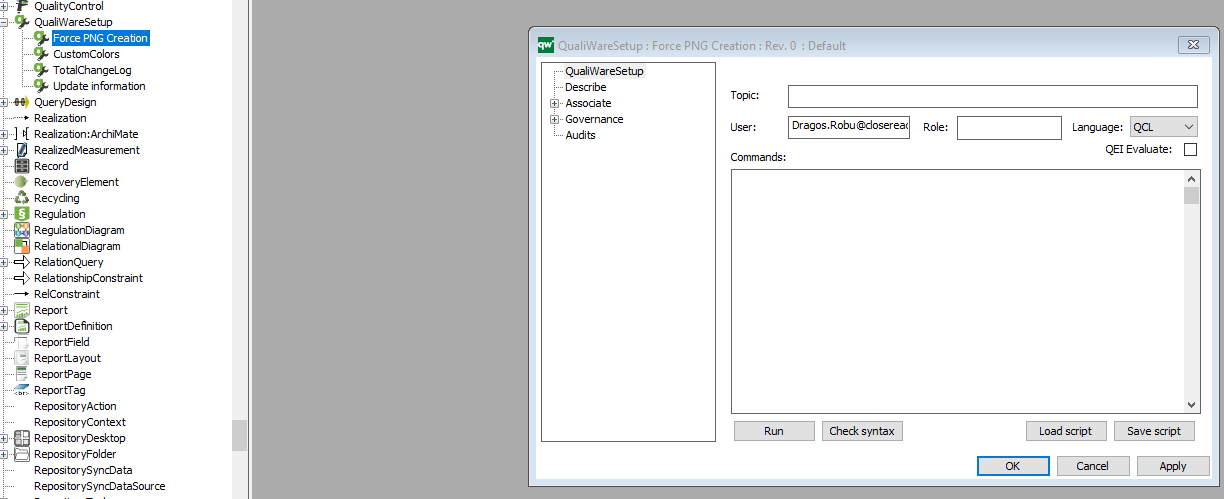
- Open Force PNG Creation by double-clicking it. You should see a new window: QualiWareSetup: Force PNG Creation : Rev. 0 : Default
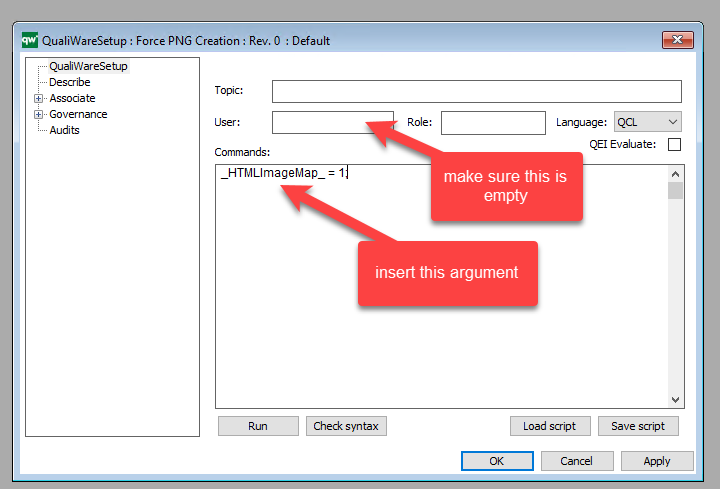
- In the QualiWareSetup: Force PNG Creation : Rev. 0 : Default window, remove the text in the User: box and insert the following argument under Comments:
_HTMLImageMap_ = 1;
- Press Apply and OK
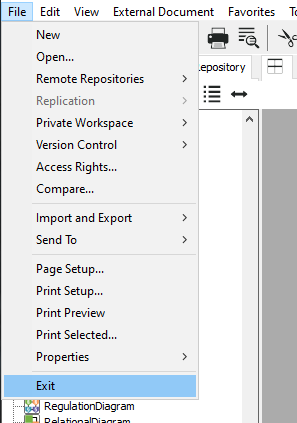
- Exit QLM (File > Exit)
- Log back into your QLM Repository
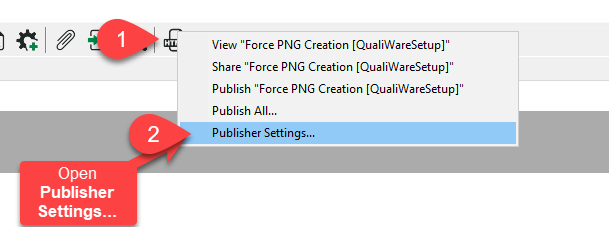
- Open HTMLPublisher by clicking on the HTMLPublisher button > Publisher Settings…
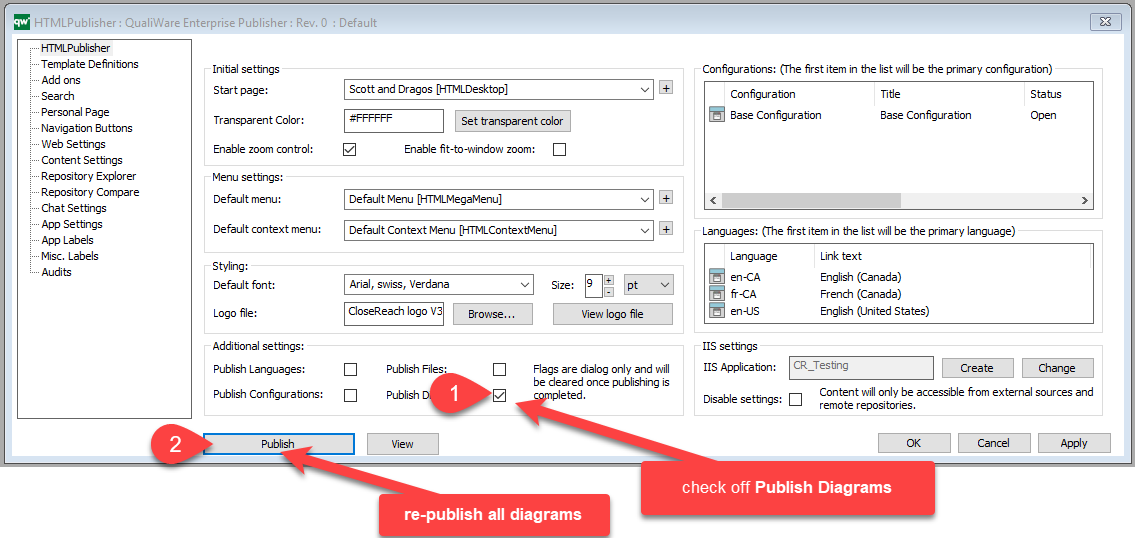
- In the HTMLPublisher window, check off Publish Diagrams: and press the Publish button to re-publish all diagrams
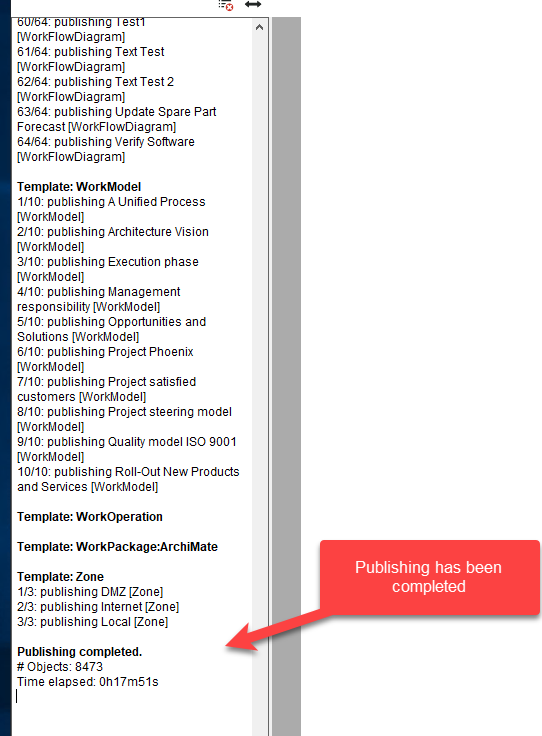
- Wait for publishing to complete
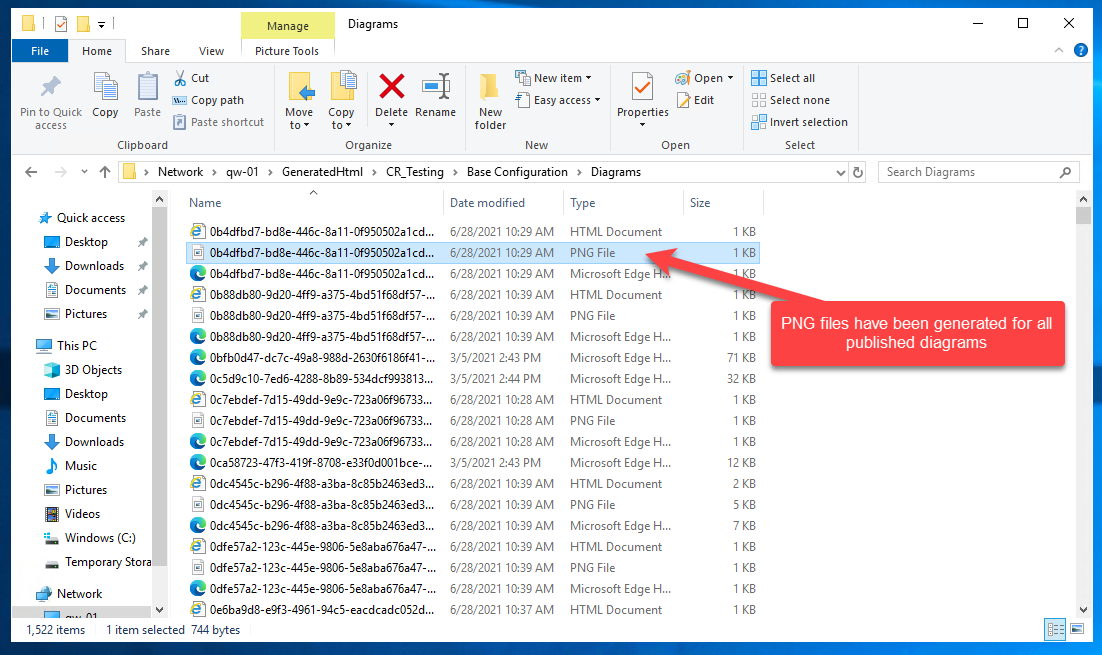
- You can now access ‘.png’ files from your repository’s GeneratedHTML folder (e.g. qw-xx/GeneratedHTML/repositoryname/Base Configuration/Diagrams)
Note: After you update a diagram you must re-publish it to see the updated respective ‘.png’ file